
 The Video Games
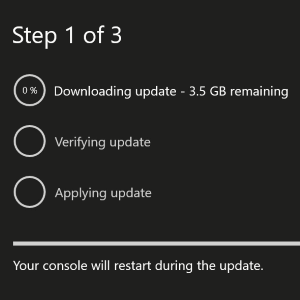
Starting at 2:00 p.m. PDT today, members of the Xbox One Preview Alpha – Skip Ahead and Preview Alpha rings will begin receiving the latest Xbox One system update (1810.180817-1520). Learn more about the new features in development for 1810 here, and read on for a list of fixes and known issues in this 1810 system update.
Fixes:
System Performance
- This build has various performance and reliability fixes.
Known Issues:
Audio
- We are aware that some users are experiencing issues where mics do not work. Please ensure that your controller is running the latest Firmware (Settings – Kinect & Devices – Devices & Accessories) and be sure to file feedback using the “Report a problem” tool when you experience this issue.
Avatars
- We are aware that, in some instances, Avatar limbs (feet & hands) are pointing in unexpected directions and facial hair is appearing where it should not. Please file feedback should you experience this.
- It can take up to 10 seconds to view an Avatar on the profile screen after creating a new Avatar.
My Games & Apps
- EA Access App – We are aware that the EA Access app will crash when navigating in the app and become unresponsive.
- Shudder App – We are aware that the Shudder app may become unresponsive.
Microsoft Edge
- Microsoft Edge crashes for some users at random times.
- The cursor may disappear when exiting and re-entering the app.
- Workaround: Press Y when re-entering the app to make the cursor re-appear
OneGuide
- Sometimes users may encounter stuttering when launching straight into Oneguide after the console is turned on from Instant on. Please file feedback when you see this.
- Here is a workaround to resolve temporarily:
- If you have a Kinect sensor connected to the console, try disabling it by going to Settings>Kinect & devices>Kinect and toggling the Kinect sensor off. Then re-launch OneGuide.
- Here is a workaround to resolve temporarily:
- Navigate Home via the Guide
- Quit OneGuide manually from the Home screen
- Wait 15-30 secs
- Launch any other streaming app (Netflix, HBOGO, YouTube)
- One launched, play a video
- Once video begins playing (it should play normally) exit the app and relaunch OneGuide
Profile Color
- Sometimes users may encounter the incorrect Profile color when powering on the console.
Virtual Keyboard
- We are aware that some characters appear incorrectly when using the Virtual Keyboard in conjunction with a chatpad. Workaround: Disconnect the chatpad.



GIPHY App Key not set. Please check settings